WordPress 7.1 Beta 3 is ready for download and testing!
This beta release is intended for testing and development only. Please do not install, run, or test this version of WordPress on production or mission-critical websites. Instead, use a test environment or local site to explore the new features.
How to Test WordPress 7.1 Beta 3
You can test WordPress 7.1 Beta 3 in any of the following ways:
WordPress Beta Tester Plugin
Install and activate the WordPress Beta Tester plugin on a WordPress install. Select the “Bleeding edge” channel and “Beta/RC Only” stream.
The scheduled final release date for WordPress 7.1 is August 19, 2026. The full release schedule can be found here. Your help testing Beta and RC versions is vital to making this release as stable and powerful as possible. Thank you to everyone who contributes by testing!
Find out what’s new in WordPress 7.1: Read the Beta 1 announcement for details and highlights.
If you encounter an issue, please share it in the Alpha/Beta area of the support forums. If you are comfortable submitting a reproducible bug report, you can do so via WordPress Trac. You can also check your issue against this list of known bugs.
Note: Beta 2 was released on July 17, 2026, as part of the WordPress 7.0.2 release and includes important security fixes.
Beta 3 introduces two improvements to styling.
Applying local style changes globally is no longer an all-or-nothing action. The Apply globally option in the block inspector now opens a quick review step, allowing you to choose which modified styles to apply globally while keeping the rest as local overrides.
Other notable fixes include improvements to media uploads: long animated GIF uploads no longer hang, images rotated using EXIF metadata are processed correctly, and uploading a single HEIC image in Safari no longer creates two entries.
The editor also includes additional fixes for Notes, responsive styling, and custom CSS. For developers, WordPress Coding Standards has been updated to version 3.4.0.
Unicode email address support will not be included in WordPress 7.1. The work will continue in a community plugin, allowing broader testing of compatibility, security, and data-handling considerations.
A Beta 3 haiku
Fresh bugs surface now, click by click, we chase them down— codebase grows steady.
Automattic is now a sponsor of Open Channels FM Podcast Network, supporting creators with tools for WordPress, WooCommerce, and more, promoting freedom online.
https://www.studiogiarola.it/wp-content/uploads/2026/05/logo-giarola.png00Albertohttps://www.studiogiarola.it/wp-content/uploads/2026/05/logo-giarola.pngAlberto2026-07-22 10:29:102026-07-22 10:29:10Open Channels FM: We are Welcoming Automattic as our Newest Sponsor
The term “block theme” is used a lot in WordPress but it was never really clear to me what that meant exactly from a code point of view.
While researching The post editor is going full iframe: what block developers need to know before WordPress 7.1, I learned that the outcome of testing WordPress 7.1 Beta 1 may soften the plan: instead of forcing the iframe for everyone, core might force it only for block themes, while classic themes using blocks with apiVersion 2 or lower keep the current 7.0 behavior. (The linked article covers the 7.0 state of things in full.)
If that’s the split, then the exact definition of “block theme” suddenly matters a great deal. So what does core actually check?
The public API is wp_is_block_theme(), which just asks the active theme:
A theme is a “block theme” if it ships an index.html block template, either in templates/, or in block-templates/, the pre-5.9 legacy location. Nothing else is consulted. That has a few consequences that may surprise people:
theme.json doesn’t make you a block theme. Neither do patterns, block template parts, or add_theme_support( 'block-templates' ). A theme can adopt every one of those “hybrid” features and still land on the classic side of this check, because the test only looks for a top-level index.html template.
Child themes inherit the answer.get_file_path() looks in the child theme first and falls back to the parent, so a child theme of a block theme is a block theme even if the child ships no templates of its own.
It’s a filesystem check, not a declaration. There’s no header in style.css that opts you in or out. Drop a templates/index.html into a theme and, as far as WordPress is concerned, it is a block theme.
The minimum files required for block and classic themes
This is the entire minimum viable block theme — two files:
Markdown
my-block-theme/├── style.css ← standard theme header└── templates/ └── index.html ← this file IS the decider
(WordPress considers a theme valid if it has style.css plus eitherindex.php or templates/index.html, which means for a block theme, index.php, functions.php, and even theme.json are all optional.)
And this is a theme that is guaranteed to stay classic:
Markdown
my-classic-theme/├── style.css└── index.php ← the classic fallback template
Staying on the classic side of the check comes down to two conditions:
Notemplates/index.htmland no legacyblock-templates/index.html. Other block templates don’t matter: a theme with `templates/single.html` but no `templates/index.html` still tests as classic. (In practice, though, if you’re shipping block templates, ship the index and be a block theme on purpose.)
No block-theme parent. The check falls back to the parent theme, so a child of Twenty Twenty-Five is a block theme no matter what the child contains. To be classic, the whole chain has to be.
Everything else is fair game. theme.json, patterns, add_theme_support( 'block-template-parts' )` custom templates registered from plugins — none of them flip the switch., patterns, add_theme_support( 'block-template-parts' ), custom templates registered from plugins: none of them flip the switch.
Where real themes land
Running that check against some current releases from the theme directory
Six of the themes in the first column ship theme.json, the marquee “block” feature, and still test classic, because the check never looks at theme.json
Twenty Twenty and OceanWP are another good gotcha: both ship a templates/ directory and are still classic, because it’s full of PHP page templates (template-cover.php, landing.php). The check wants templates/index.html specifically, so “does it have a templates folder” is not the indicator you might assume.
How the editor reads it
On the JavaScript side, the block-theme flag surfaces in two different places, which is worth knowing if you go source-diving.
For all the weight the term carries, “block theme” boils down to a single file: templates/index.html exists, or it doesn’t. Not theme.json, not patterns, not any amount of hybrid adoption. Just one index template, checked up the parent chain.
That’s worth keeping in mind if 7.1 does end up drawing the iframe line at wp_is_block_theme(). A hybrid theme that has adopted everything except block templates would keep the classic editor behavior, while adding a single templates/index.html (even accidentally, even in a parent theme you don’t control) would flip a site to the forced iframe. If your theme or your users’ sites sit anywhere near that line, now is a good time to check which side of it you’re actually on: it’s one is_file() call away.
https://www.studiogiarola.it/wp-content/uploads/2026/05/logo-giarola.png00Albertohttps://www.studiogiarola.it/wp-content/uploads/2026/05/logo-giarola.pngAlberto2026-07-22 10:29:102026-07-22 10:29:10Gutenberg Times: How WordPress decides a theme is a “block theme”
This episode looks at the evolving online landscape, focusing on domain names, digital identity, and AI’s influence. Key insights include rising domain registrations, AI in managing abuse, and the importance of open source.
https://www.studiogiarola.it/wp-content/uploads/2026/05/logo-giarola.png00Albertohttps://www.studiogiarola.it/wp-content/uploads/2026/05/logo-giarola.pngAlberto2026-07-22 10:29:102026-07-22 10:29:10Open Channels FM: The Growth of Domain Names and the Future of AI in Internet Identity
People think Open Source is just about having access to the source code. Actually, there’s a much longer history behind it. Open Source existed before the term Open Source was even coined, back in the late 60s. Universities started giving away software like Unix for free under small licenses like BSD or MIT, coincidentally named […]
https://www.studiogiarola.it/wp-content/uploads/2026/05/logo-giarola.png00Albertohttps://www.studiogiarola.it/wp-content/uploads/2026/05/logo-giarola.pngAlberto2026-07-22 10:29:102026-07-22 10:29:10Open Channels FM: Open Source and the Open Source Initiative
WordCamp Rajshahi 2026, held on July 2nd-3rd, 2026, at the Rajshahi University of Engineering & Technology (RUET) Auditorium, brought together WordPress enthusiasts, developers, designers, business owners, students, and open-source contributors from across Bangladesh and beyond. As a non-profit, community-driven conference, the event demonstrated the strength of collaboration, knowledge sharing, and the spirit of open source.
More than just a technology conference, WordCamp Rajshahi became a place where people connected, exchanged ideas, and inspired one another to contribute to the future of WordPress.
Sharing Knowledge That Matters
The conference featured a diverse lineup of local and international speakers who shared practical experiences, real-world case studies, and emerging trends shaping the web today.
Artificial intelligence was one of the most discussed topics throughout the event. Sessions explored how AI is transforming the way developers and businesses work—from integrating AI into WordPress without writing code to building customer support agents, using modern Large Language Models (LLMs) for development, debugging applications, and improving everyday workflows.
Performance, architecture, and security also received significant attention. Speakers demonstrated advanced WordPress optimization techniques, object caching strategies, no-code animations using GSAP, methods for identifying system vulnerabilities, and practical approaches to cleaning malware-infected WordPress websites with AI.
Beyond technical sessions, the conference emphasized personal and professional growth. Attendees learned about building successful careers, transitioning from startups to multinational companies, product marketing, the realities of remote work, and maintaining mental well-being while working in the technology industry.
Contributor Day: Giving Back to WordPress
Contributor Day, held on July 2, served as one of the most meaningful parts of the event.
Participants worked alongside experienced WordPress contributors and Table Leads to improve the WordPress project itself. Whether they contributed to Core, Accessibility, Themes, Plugins, Polyglots (translations), Education, or Photos, attendees experienced firsthand how community collaboration built the global WordPress ecosystem.
For many first-time contributors, it was their first opportunity to make a direct contribution to one of the world’s largest open-source projects.
Campus Connect: Inspiring the Next Generation
One of the highlights of WordCamp Rajshahi 2026 was the Campus Connect initiative.
To encourage student participation in open source, 40 university students received complimentary tickets to attend the event. This initiative introduced young learners to the WordPress community, allowing them to interact with experienced professionals, attend technical sessions, and discover opportunities to contribute to open source.
By investing in students today, the community hopes to cultivate the next generation of developers, designers, and contributors who will help shape the future of WordPress.
Sponsors Who Made It Possible
WordCamp events are made possible through the generous support of organizations that believe in strengthening the open-source ecosystem. Rather than simply sponsoring an event, these companies invest in community growth and knowledge sharing.
This year, the sponsorship tiers celebrated Rajshahi’s famous mango heritage.
Their support enabled the community to deliver a world-class experience while keeping the event affordable and accessible.
Thank You to Everyone Behind the Scenes
An event of this scale is never the work of a single person.
Our sincere appreciation goes to every speaker and Contributor Day table lead who generously shared their knowledge and experience with the community.
We are equally grateful to our organizers and volunteers. From sponsorship coordination, website management, registration, design, photography, audiovisual production, venue operations, food management, and attendee support, every team member played a vital role in ensuring the event ran smoothly.
Their dedication transformed months of planning into an unforgettable experience for every attendee.
Looking Ahead
WordCamp Rajshahi 2026 demonstrated what is possible when passionate volunteers, contributors, sponsors, and community members work toward a common goal.
The event was more than a conference—it was a celebration of learning, collaboration, and the open-source values that make WordPress one of the world’s most successful communities.
As the community continues to grow, the relationships built, ideas shared, and contributions made during WordCamp Rajshahi 2026 will inspire future events and encourage even more people to participate in the global WordPress ecosystem.
Here’s to many more WordCamps, more contributors, and a stronger open-source community in Bangladesh and beyond.
https://www.studiogiarola.it/wp-content/uploads/2026/05/logo-giarola.png00Albertohttps://www.studiogiarola.it/wp-content/uploads/2026/05/logo-giarola.pngAlberto2026-07-21 10:19:042026-07-21 10:19:04WordCamp Central: WordCamp Rajshahi 2026: Celebrating Community, Learning, and Open Source
What a week! WordPress 7.1 Beta 1 (and Beta 2) arrived with a huge array of updates. We’ll unpack them together over the next four weeks, right up to the final release on August 19, 2026.
One thing shouldn’t wait, though: the security release WordPress 7.0.2. Go update your production sites now — this newsletter will still be here when you’re back.
In this edition, you’ll also find the first speaker lineup for WordCamp US, a fourth page-builder migration story, WooCommerce 11.0 on the horizon, and plenty of block development goodness: from iframed editors to on-brand maintenance pages.
Grab your favorite Saturday beverage and dig in.
Yours, Birgit
WordCamp US 2026: Four Tracks, Three Workshops, 33 Speakers
The first wave of WCUS 2026 speakers is live — and it reads like a who’s-who of WordPress in practice.
WordCamp US just published its opening lineup for August 16–19 in Phoenix: 34 confirmed speakers so far, including K Adam White, Brian Coords, Jamie Marsland, Kathy Zant, Miriam Schwab, and Robert Abela, all experienced developers, educators, security specialists, community builders.
The program runs four tracks.
AI in Action leads with sessions on agentic workflows, AI search, and guardrails for AI-assisted development.
Honing Your Skills covers the practical side: maintenance, privacy compliance, creator commerce, security.
Technical WordPress digs into block migrations at scale, WP-CLI automation, and plugin pipelines.
Beginning WP101 is the on-ramp for newcomers — or for clients you’re bringing along.
Three hands-on workshops round out the program, where you build something real in the room and leave with it.
The full session schedule isn’t out yet, but the speaker list alone is a useful signal. If someone on that page is a voice you follow, a tool you depend on, or a corner of WordPress you’re actively navigating, you now have a specific reason to be in the room.
WordPress 7.1 Beta 1 was release on July 15, 2026. is now available for testing. The release post offers instructions how to sent up a test side and shows an extensive list of new features.
The security team released WordPress 7.0.2 with the urgent appeal to update right away. The security fixes were also backported in 6.9.5 and 6.8.6.
The security fix was also included in WordPress 7.1 Beta 2, so testing sites are also protected during this release cycle.
Huzaifa Al Mesbah, from the Core Test team, published the accompanying Help Test WordPress 7.1 post.
A few WordPress 7.1 Dev Notes are already available:
Plugins, Themes, and Tools for #nocode site builders and owners
In about 10 days, WooCommerce 11.0 release is schedule. Brain Coords has the skinny for you in what’s coming for developers in WooCommerce. Performance leads the release with 28 PRs — product object caching becomes the default for new stores, speeding up variable products by 9–12%. You’ll also find email verification connecting guest orders to accounts, new phone validation hooks, video embeds in the block email editor, and the final removal of the Product Editor beta. The beta is ready for your testing now.
Jamie Marsland followed his instincts and build Jamie’s Front-End Editor for Content Teams, a plugin that lets your editors click any paragraph or heading on the live page and start typing — no block editor required. With the latest updates, you can now edit text, links, buttons and images right on the live page. No wp-admin, no block editor, just click and change it in place.
Built on the Interactivity API with no build step, it preserves block markup on save, records edits as native block notes for an audit trail, and lets you restrict chosen roles to front-end-only editing. Let Marsland what you think.
Last week, I shared three migration stories from page builders to the Core block editor and block themes. Here’s a fourth perspective: The team at WP Expert, an Ottawa agency founded by Frederic Sune, put together a comprehensive post on migrating agency sites from page builders to Gutenberg, should you go on that journey, too. You’ll find the strategic arguments (better Core Web Vitals, smaller attack surface, less technical debt) alongside a practical playbook covering backups, staging, block theme selection, pattern development, and SEO safeguards. The post also explores what block-based architectures mean for an agency’s business model, from premium modernization packages to fewer layout-related support tickets. An FAQ rounds it out.
Theme Development for Full Site Editing and Blocks
Brian Coords tackles a common WooCommerce pain point: custom product templates for block themes. He combines two core WordPress features — the plugin template registration API from 6.7 and the venerable single_template_hierarchy filter — to serve custom templates for product collections, like all products in a category. His example plugin falls back to your Single Product template unless you override it. Clone the repo and give it a try; custom Product fields are next on his list.
On the WordPress Developer Blog, Troy Chaplin shows you how to build an on-brand maintenance mode for block themes. You add one small hook to your theme’s functions.php once, then design and manage the maintenance page entirely in the Site Editor with full access to your Global Styles. Renaming or deleting the template toggles maintenance mode on and off, no code needed. An SEO-friendly variant adds 503 headers so crawlers know the downtime is temporary.
“Keeping up with Gutenberg – Index 2026” A chronological list of the WordPress Make Blog posts from various teams involved in Gutenberg development: Design, Theme Review Team, Core Editor, Core JS, Core CSS, Test, and Meta team from Jan. 2024 on. Updated by yours truly.
On WP Mayor, Jean Galea untangles when to reach for WP-CLI, the REST API, or the Abilities API. His mental model: they’re layers, not rivals. WP-CLI lives on the server for bulk work, REST serves off-server callers like headless front ends, and the Abilities API tells AI agents what they’re allowed to do, complete with schemas and permission checks. Galea also shares how his own sites lean on all three at once.
Get up to speed how to make your custom blocks plugin work in the iframed post editor, if you haven’t yet. After five years of ruminating and communicating the switch is coming to WordPress 7.1. In his post, Ryan Welcher explains why the post editor is going full iframe in WordPress 7.1 and what that means for your custom blocks. You’ll find the fixes for the most common breakage — global window and document references, editor styles enqueued into the wrong document, stale admin-scoped CSS, and third-party libraries — plus a companion demo plugin with broken/fixed block pairs, Playground blueprints for testing both states, and a handy pre-flight checklist.
The video volunteers at WordCamp Portugal uploaded all recordings to WordPressTV and two of the talks caught my eye:
Imran Sayed walks you through the fastest way to build Gutenberg blocks with modern tools, scripts, and AI. If custom block development has felt complex or time-consuming, you’ll appreciate his focus on practical, real-world workflows you can adopt immediately — moving fast without over-engineering. The recording is available on WordPress.tv, and the presentation slides are linked below the video for easy reference.
Jorge Costa shows you how to use the AI building blocks already shipped in WordPress core (the WP AI Client, the Abilities API, and the MCP adapter) to bring AI-powered features into your own plugins, themes, and sites. He also tackles the bigger question: when agents can spin up entire projects on any stack, why is WordPress still the right bet? Slides are linked alongside the recording.
Check out the not so new any more Talk Devy to Me series on Ryan Welchers YouTube Channel! In the latest epsiode, Antonio Sejasdemos Studio Code, the agentic AI assistant built into WordPress Studio’s desktop app and CLI. You can spin up sites, run performance audits, add content, and install plugins and themes through natural language conversation — all locally, so nothing you break goes public. Sejas explains how it works under the hood before building something live with the host. Studio Code is free while in beta, so now’s a good time to experiment.
If you rather want to read about the updates in WordPress Studio, Fredrik Rombach Ekelund shares three big updates to WordPress Studio: a new default Native PHP runtime makes your local sites load 30–50% faster while using a third of the memory, the Studio CLI now installs with one dependency-free command — no Node.js or npm required — and Claude Sonnet 5 is the new default model in Studio Code, improving multi-step work like tracing bugs across files. A Sandbox runtime remains available for testing untrusted code.
Now also available via WordPress Playground. There is no need for a test site locally or on a server. Have you been using it? Email me with your experience.
Questions? Suggestions? Ideas? Don’t hesitate to send them via email or send me a message on WordPress Slack or Twitter @bph.
https://www.studiogiarola.it/wp-content/uploads/2026/05/logo-giarola.png00Albertohttps://www.studiogiarola.it/wp-content/uploads/2026/05/logo-giarola.pngAlberto2026-07-19 11:03:122026-07-19 11:03:12Gutenberg Times: #WCUS Schedule, iframed Post Editor, WooCommerce 11.0 and so much more — Weekend Edition 369
WordPress 7.0.2 went out today with two important security updates. One is a type of pre-authorization RCE we (fortunately!) have only seen a few times in WordPress’ 23-year history; the last, I believe, in the PHPMailer class five years ago.
Major kudos to Adam Kues of Searchlight Cyber for finding the batch REST API RCE, to TF1T, dtro, and haongo on the facilitated SQL injection!
Thanks to responsible disclosure, the WordPress.org Security team was able to coordinate with hosts and CDNs to mitigate the attack at the network layer. Please upgrade anyway! But it’s a huge relief to know the vast majority of WordPress sites were protected by defense-in-depth even before the updates went out.
I really appreciate how people and organizations that otherwise might not be on the best of terms come together in times like this. (Full credits in the release post.) Everyone buries the hatchet to protect as many people as possible as quickly as possible.
I’ve said it before, I’ll say it again: security is going to be a big topic this year as the technology industry digests the incredible advances in AI models. It’s a good time to review your plans and processes, sweat the details, invest in maintenance, and hug a sysadmin.
https://www.studiogiarola.it/wp-content/uploads/2026/05/logo-giarola.png00Albertohttps://www.studiogiarola.it/wp-content/uploads/2026/05/logo-giarola.pngAlberto2026-07-18 10:16:332026-07-18 10:16:33Matt: Important Security Update
The 7.0.2 security release addresses one critical and one high severity security issue.
Because this is a security release, it is recommended that you update your sites immediately. Due to the severity, the WordPress.org team have enabled forced updates via the auto-update system for sites running affected versions.
To manually update you can visit your WordPress Dashboard, click “Updates”, and then click “Update Now”, or you can download WordPress 7.0.2 from WordPress.org. On sites that support automatic background updates, the update process will begin automatically.
Security updates included in this release
The security team would like to thank the following people for responsibly reporting vulnerabilities and allowing them to be fixed in this release:
A facilitated SQL injection issue reported as a team by TF1T, dtro, and haongo
A REST API batch-route confusion and SQL injection issue leading to Remote Code Execution reported by Adam Kues at Assetnote / Searchlight Cyber
For more information on this release, please visit the HelpHub site.
Backports
WordPress 6.9 is affected by both vulnerabilities. Version 6.9.5 has been released containing fixes for both.
WordPress 6.8 is only affected by the first vulnerability. Version 6.8.6 has been released containing a fix.
The beta release of WordPress 7.1 is affected by both vulnerabilities. Version 7.1 beta2 has been released containing fixes for both.
Versions of WordPress prior to 6.8 are not affected.
If you run a WordPress site, then you know that spam is a real annoying problem whether it comes to contact forms, WordPress comments, or user registrations.
The good news is that stopping spam in WordPress is a lot easier than you probably think, and you don’t need expensive tools either.
We have spent over 16 years testing anti-spam plugins, tools, and refining strategies to keep WPBeginner and our other business websites safe from daily spam attacks.
In this ultimate guide, we’ll walk you through how to block each type of WordPress spam, step by step from the basics to advanced modern automated spam protection. These are the exact methods we’re using to protect our own websites.
We’re covering a lot of ground in this ultimate guide, so use the quick links below to jump straight to the section you want to learn about first:
WordPress comes with several anti-spam options that can protect your site against spam. These built-in options won’t stop every bot, but they will remove the easiest targets right away.
We always recommend turning these settings on first, because they cost nothing and take only a few minutes to set up.
Tighten Your WordPress Discussion Settings
To prevent comment spam, the built-in discussion settings in WordPress act as your first line of defense. They allow you to control who can post, what kind of links are permitted, and how much control you have over the conversation.
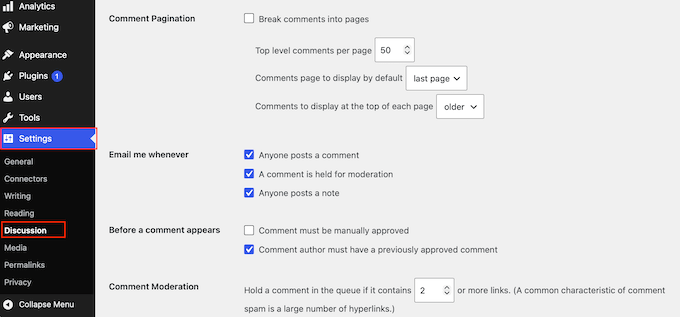
To configure these anti-spam controls, go to Settings » Discussion in your WordPress dashboard.
The most useful tool on this screen is the comment moderation queue. This tool acts as a holding area that keeps submissions hidden from the public until you have a chance to look them over.
Because nothing goes live automatically, spam never reaches your visitors, even if it manages to get past your other filters.
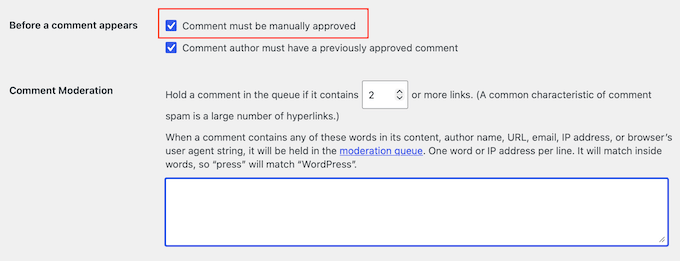
To turn this on, scroll down to the ‘Before a comment appears’ section and check the box next to ‘Comment must be manually approved.’
If you want, you can also enable ‘Comment author must have a previously approved comment.’ This lets returning commenters post without waiting for approval. However, be sure to review your published comments regularly since they won’t appear in your moderation queue.
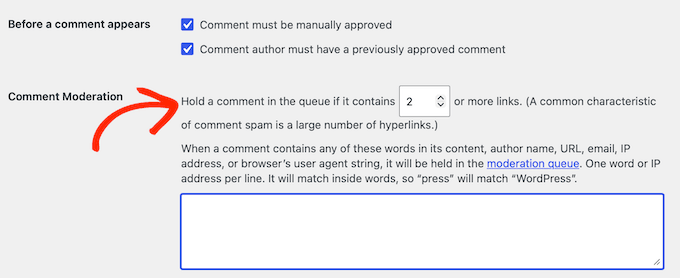
After that, scroll to the ‘Comment Moderation’ box, where you’ll find a setting that limits links. Because spam comments almost always contain web addresses, WordPress can automatically hold any submission that includes too many links.
The field labeled ‘Hold a comment in the queue if it contains [X] or more links’ is set to 2 by default. Lowering that number to 1 will help you catch even more junk.
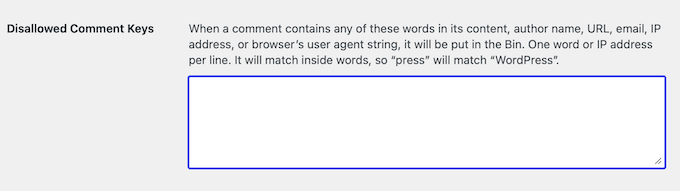
On the same screen, you can use the comment blocklist to automatically filter out unwanted content. This tool looks for specific words, names, email addresses, or web addresses and sends any matching comment straight to the trash.
In the ‘Disallowed Comment Keys’ box, you can paste your own trigger words, putting one on each line, and then save your changes.
Require a Name and Email, and Hold First-Time Commenters
Healthy discussions start with real people. Requiring commenters to enter a name and email encourages more thoughtful conversations and discourages anonymous drive-by comments.
Most genuine visitors won’t mind providing these details, and it helps create a more welcoming and trustworthy community around your website.
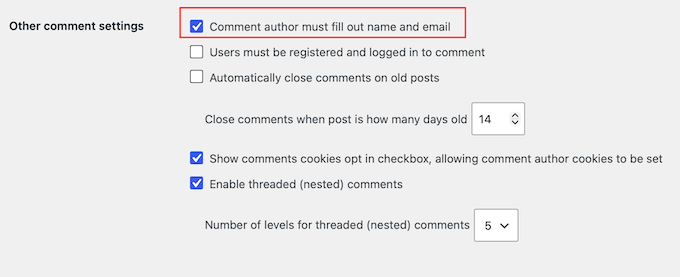
To enable this, scroll to the ‘Other comment settings’ section and check the box next to ‘Comment author must fill out name and email.’
Depending on the type of website you have, you may not need a comment section at all. If that’s the case, then you can simply disable comments entirely and that’ll get rid of the WordPress comment spam problem once and for all.
The most thorough option is the code method, which disables comment support across your entire site at once. It’s safest to add the snippet with a free code snippets plugin like WPCode rather than editing your theme’s files directly, so a theme update can’t undo it.
add_action('admin_init', function () {
    // Redirect any user trying to access comments page
    global $pagenow;

    if ($pagenow === 'edit-comments.php') {
        wp_safe_redirect(admin_url());
        exit;
    }

    // Remove comments metabox from dashboard
    remove_meta_box('dashboard_recent_comments', 'dashboard', 'normal');

    // Disable support for comments and trackbacks in post types
    foreach (get_post_types() as $post_type) {
        if (post_type_supports($post_type, 'comments')) {
            remove_post_type_support($post_type, 'comments');
            remove_post_type_support($post_type, 'trackbacks');
        }
    }
});

// Close comments on the front-end
add_filter('comments_open', '__return_false', 20, 2);
add_filter('pings_open', '__return_false', 20, 2);

// Hide existing comments
add_filter('comments_array', '__return_empty_array', 10, 2);

// Remove comments page in menu
add_action('admin_menu', function () {
    remove_menu_page('edit-comments.php');
});

// Remove comments links from admin bar
add_action('init', function () {
    if (is_admin_bar_showing()) {
        remove_action('admin_bar_menu', 'wp_admin_bar_comments_menu', 60);
    }
});
If you’d rather not go site-wide, you can also turn comments off on individual pages. This is handy when you only want them gone on specific pages, like your Contact or About pages, which rarely need a comment section.
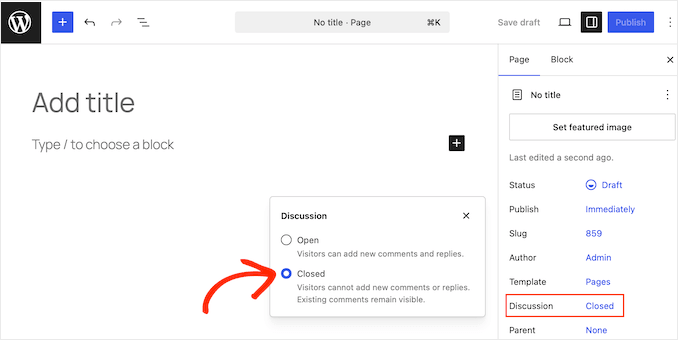
To do this, open the page in the WordPress content editor. Then click the ‘Discussion’ option in the right-hand sidebar and select ‘Closed.’
You can also stop spam from piling up on older content without touching your newer posts. If you don’t expect comments on old posts, then WordPress can close them automatically after a set number of days.
This gives spam bots fewer chances to target your archived content.
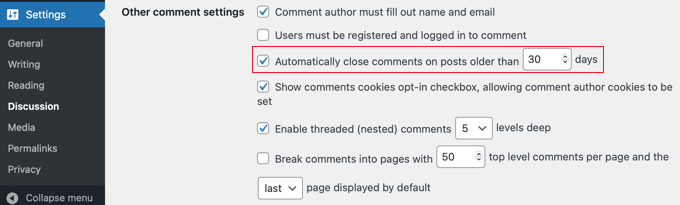
To set this up, head to Settings » Discussion and find the ‘Other comment settings’ section. Check the box next to ‘Automatically close comments on posts older than [X] days’, then set a sensible limit such as 30 or 90 days.
Disable Trackbacks and Pingbacks
Trackbacks and pingbacks notify you when another website claims to have linked to one of your blog posts.
While they were originally designed to help bloggers connect conversations across different websites, they’re now commonly abused by spammers to send fake link notifications.
Turning this feature off completely removes a whole category of junk notifications from your dashboard.
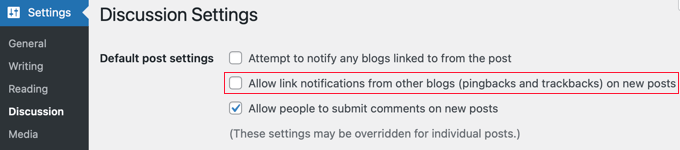
To disable these notifications, go to the Settings » Discussion screen in your WordPress dashboard. Here, uncheck the box next to ‘Allow link notifications from other blogs (pingbacks and trackbacks) on new posts.’
With that done, don’t forget to click ‘Save Changes’ at the bottom of the screen.
Just be aware that changing this option only protects the posts you publish from this moment forward. If you want to clean up the content you’ve already published in the past, you can follow our step-by-step guide on how to disable trackbacks and pings on existing WordPress posts.
2. Set Up Modern AI-Powered Spam Bot Protection for WordPress
In the era of AI where automated spam is increasing, the best defense against it is a modern AI-powered spam protection for WordPress.
These spam filtering solutions automatically detect and block spam on your WordPress comments, contact forms, and user registrations without the use of CAPTCHA which can hurt conversions.
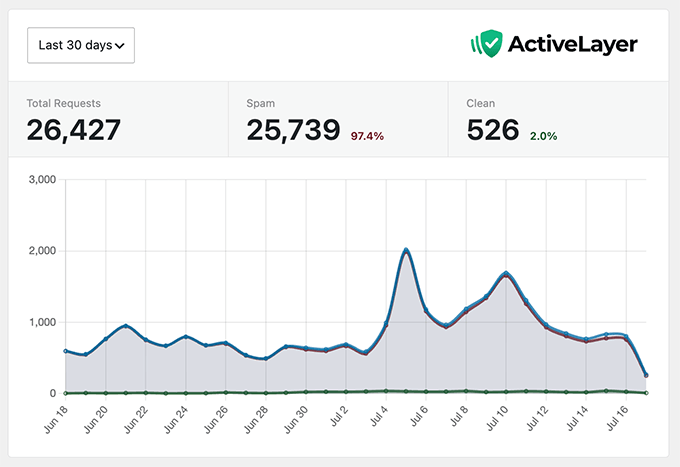
On WPBeginner, we use ActiveLayer for this. It is AI-powered and runs server-side, so it stops spam invisibly, without a CAPTCHA and it’s GDPR compliant.
In the last 30 days, it has blocked over 25,739 spam comments and contact form submissions on our website. It even shows you a confidence score, and the reason behind every submission it flags, not just a pass-or-fail verdict when you look at their logs.
The free plan includes 1,000 spam checks with no credit card, and paid plans start at around $4 per month billed yearly.
The two other popular spam filtering plugins for WordPress you could try are Akismet or CleanTalk.
Akismet is very popular and still is a good fit for personal blogs, where its “name your price” plan can be free for non-commercial sites. But they have raised their prices significantly for commercial sites which is quite expensive for smaller businesses. For a business site, we would point you to either ActiveLayer or CleanTalk.
Whichever tool you choose, stick to just one, because running two spam filters at once can conflict and block real visitors. The benefit of these spam protection plugins are that they integrate with all other popular contact form plugins by default.
3. Power-User Tips for Stopping WordPress Comment Spam
So far we’ve configured the built-in spam prevention settings in WordPress, and an automated spam filtering plugin for WordPress. The combination of these two should block most spam.
However if you are not able to set up modern AI spam protection due to costs or another reason, then you can use one of these tips below to combat comment spam in WordPress.
Add a Free CAPTCHA to Your Comment Form
CAPTCHA is a simple test that most human visitors pass without any effort, while automated scripts fail it. We recommend adding Cloudflare Turnstile CAPTCHA to your WordPress comments because it’s free and fairly straight forward to set up.
To set it up, install and activate the free Simple Cloudflare Turnstile plugin. You will be asked to create a free account on Cloudflare’s website and connect it with the plugin.
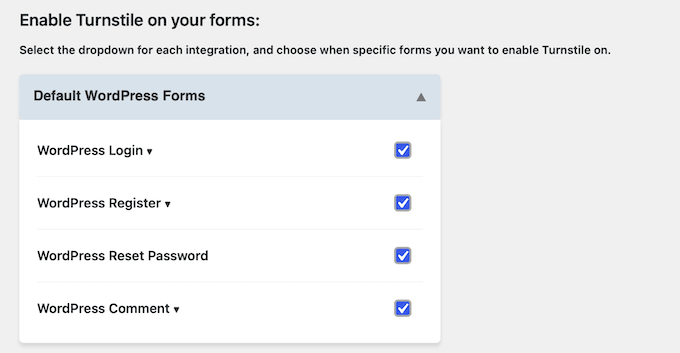
Once that’s done, you can scroll to the ‘Enable Turnstile on your forms’ section. Simply check the boxes to protect all your WordPress forms and click ‘Save Changes’.
Google reCAPTCHA is another option, which you can add with the Advanced Google reCAPTCHA plugin. We no longer recommend it because Google has capped their free tier at 10,000 assessments per month for your entire organization whereas Cloudflare Turnstile stay free without limits.
Limit or Require Login to Comment
Another really effective way to stop comment spam in WordPress is to control who’s allowed to participate in comments.
If your comment section is open to everyone, then spammers can continuously flood your forms with automated links. Restricting comments to registered account holders ensures that only verified users can post. This forces a level of accountability that most bots will not bother trying to bypass.
Because it requires readers to go through the extra step of creating and logging into an account, this approach is best suited for membership sites, online forums, and private communities.
If you run an open, public blog, then we’d recommend using an automated filtering service or a reader challenge instead as those add less friction.
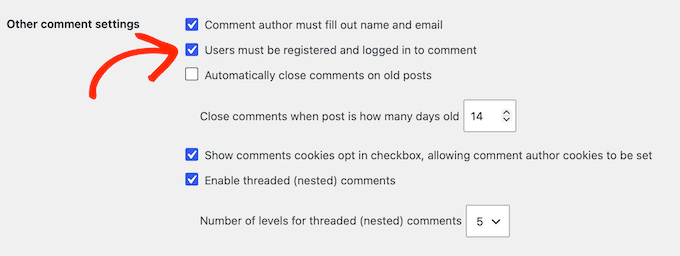
If you do decide to turn this restriction on, go to Settings » Discussion in your WordPress dashboard. Under the ‘Other comment settings’ section, check the box next to ‘Users must be registered and logged in to comment.’
As always, don’t forget to save your changes.
Use Antispam Bee for Free Keyword and Pattern Filtering
Some spam slips through basic checks by mimicking human writing. This is where a dedicated filtering plugin can help protect your site.
Antispam Bee is an excellent free, privacy-friendly anti-spam plugin that doesn’t require an API key or account registration. Installing Antispam Bee gives you a powerful set of local rules to analyze comment data before it even hits your database.
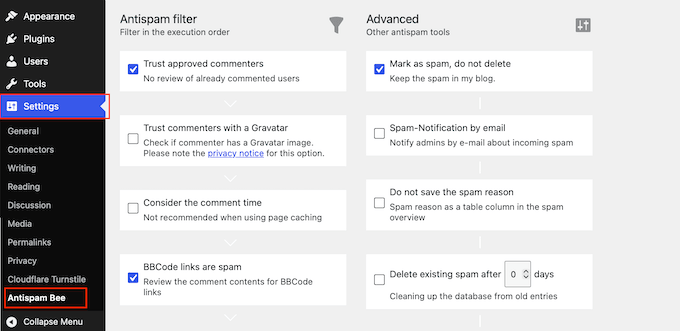
Once it’s activated, you can configure your rules by going to Settings » Antispam Bee.
We recommend enabling the options to:
Trust approved commenters.
Mark as spam.
Do not delete.
Use regular expressions (which allows the plugin to scan for known text and link patterns).
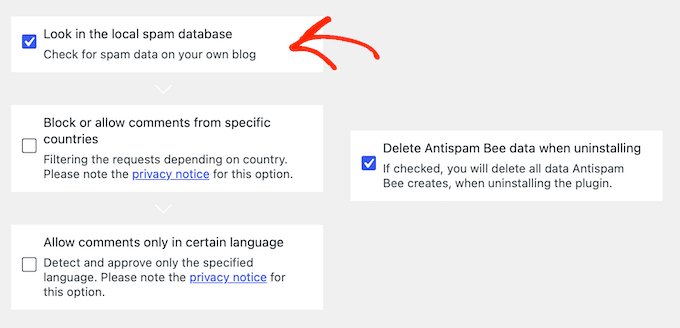
You should also check the box to ‘Look in the local spam database.’ This allows Antispam Bee to cross-reference new submissions against previous spam history on your site.
Under ‘Advanced,’ you can set Antispam Bee to delete existing spam after a set number of days, which keeps your database tidy without any manual effort.
We highly recommend leaving the email notifications for spam turned off in this section. A busy website can attract hundreds of automated submissions a day, and these alerts will quickly flood your inbox.
If you want to try one more free tweak, then you can remove the website address field from the comment form.
4. Stopping WordPress Contact Form Spam (Best Practices)
Contact and lead forms are among the most attacked parts of any WordPress site. We know this firsthand because we once had to combat more than 18,000 spam entries flooding a single form.
We use WPForms to build forms on WPBeginner, and it’s a popular form builder plugin used by over 5 million websites. Their free version includes smart anti-spam protection, CAPTCHA integrations with Google / Cloudflare Turnstile, and the paid plans add the filtering options we cover below.
Other popular form builders like Gravity Forms and Fluent Forms have similar anti-spam settings, so check the options in whichever form builder plugin you use. We will show WPForms here because it’s what we use and consider the best fit for beginners.
Enable Default Anti-Spam Token (or Similar HoneyPot)
To combat lead form spam, WPForms silently attaches a unique, time-sensitive token to your form on every page load. The anti-spam token blocks automated scripts, which means spam entries are blocked before they reach your inbox.
It’s turned on by default for new forms, but it’s worth confirming.
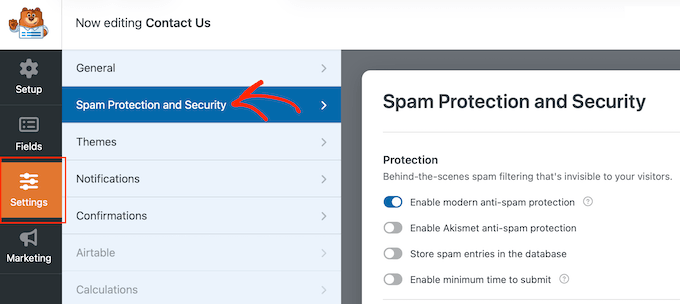
Open your form, go to Settings » Spam Protection and Security, and make sure ‘Enable modern anti-spam protection’ is switched on.
This is a modern version of the Honeypot technology which most WordPress form plugins come with, so it may be labeled as Honeypot in another form tool that you might be using.
Enable a CAPTCHA on Your Contact Form
More aggressive bots mimic human browsing and slip past the invisible token. Adding a visible CAPTCHA field stops them by forcing a challenge they can’t read or solve.
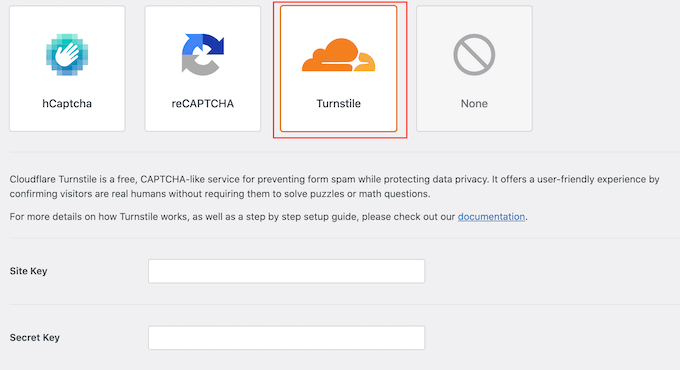
WPForms has both Cloudflare Turnstile and Google reCAPTCHA built in, and we default to Turnstile here. It’s free for everyone and runs its checks in the background, so most real visitors pass without solving a puzzle.
To set it up, go to WPForms » Settings » CAPTCHA and choose ‘Cloudflare Turnstile’.
Google reCAPTCHA is also selectable on that same WPForms » Settings » CAPTCHA screen. We default to Turnstile because it’s free without limits, but reCAPTCHA still works if you prefer it.
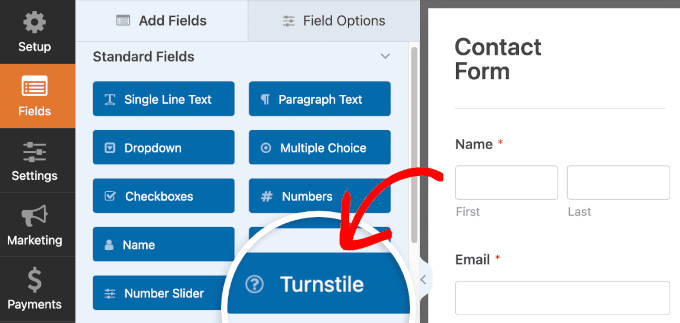
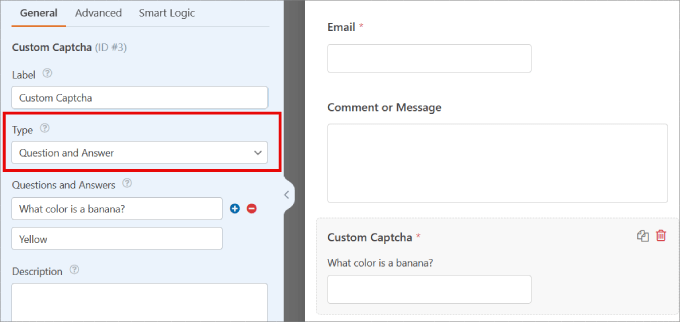
If you’d rather not send visitor data to Google or Cloudflare, then WPForms’ Custom Captcha field (available on any paid plan) builds the challenge on your own server instead.
Add the field, then set it to a random math problem or your own question and answer.
Use Time-Based Behavioral Checks to Stop Contact Form Spam
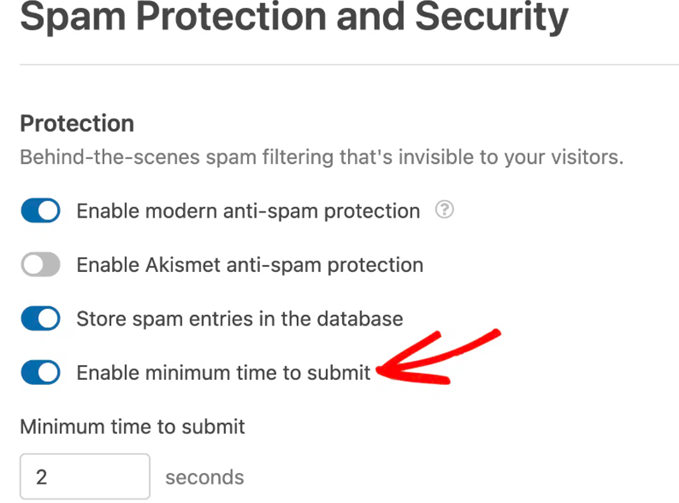
A real person needs several seconds to read a question and fill out a form, while a bot submits in a fraction of a second. Time-based checks flag those impossibly fast submissions without changing anything the visitor sees.
With WPForms, the ‘Enable minimum time to submit’ option is enabled by default with a minimum time to submit of 2 seconds. However, you can update the minimum time to any value you like.
Block Form Submission by Country, IP, Email Address, and More
Some spam form submissions still gets through unless you screen the content itself. In the Pro version, WPForms lets you block entries by specific email address, by keyword, and by country or IP address.
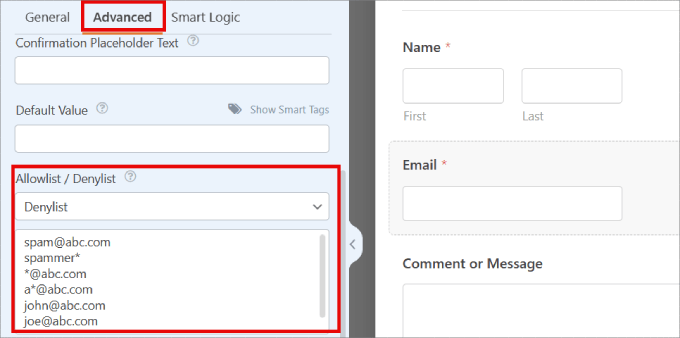
To block a sender, open your form, select the Email field, open the Advanced tab, choose Denylist, and enter the addresses or domains to ban. A wildcard like *@example.com blocks an entire domain.
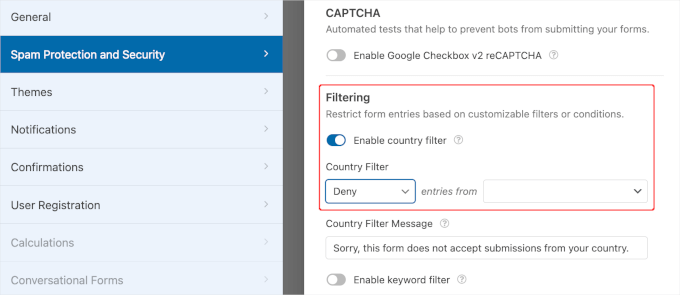
To block spammy phrases, go to Settings » Spam Protection and Security.
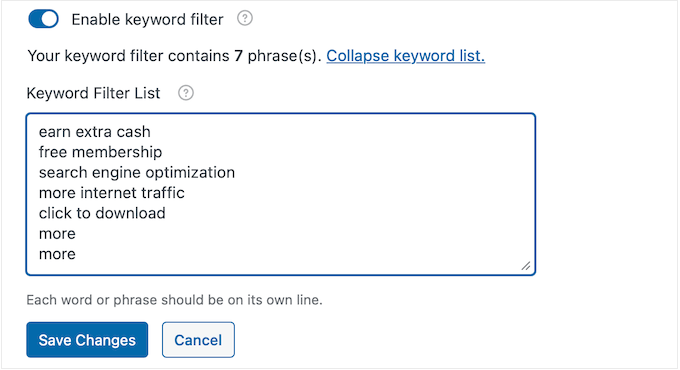
Turn on ‘Enable keyword filter’, open ‘Edit keyword list’, and add each term on its own line.
And if you only serve certain regions, turn on ‘Enable country filter’ on the same screen to allow or deny locations.
5. Stopping Spam User Registrations in WordPress (Best Practices)
On a membership site or WooCommerce store, spam registrations are more than a nuisance. Fake accounts clog your user database and skew your customer and email metrics.
Here’s what you can do to prevent spam user registrations in WordPress.
Turn Registration Off When You Do Not Need It
If you’re not running a membership site or an eCommerce store, then you likely don’t need to allow user registration. The easiest thing to prevent user registration spam there is to turn it off.
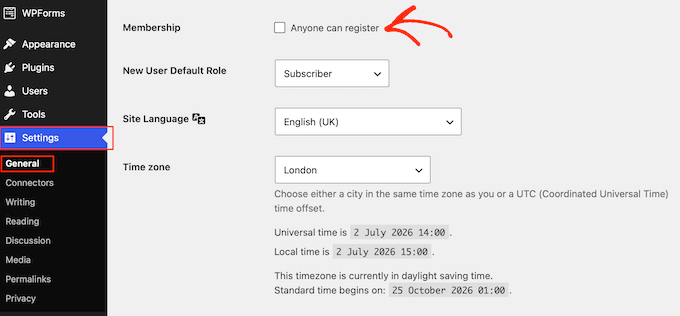
Simply go to Settings » General in your WordPress admin area, and uncheck the ‘Anyone can register’ box.
Require Email Confirmation Before an Account Activates
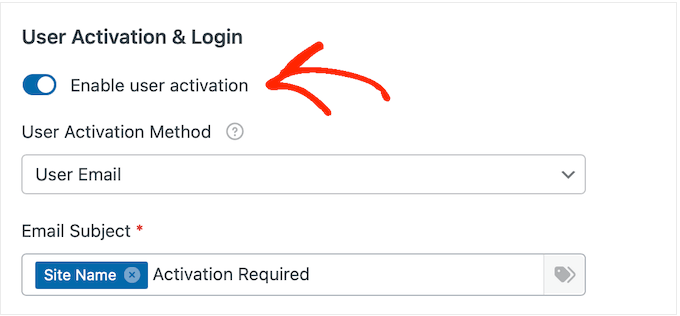
If you do need open registration, then the goal is to let only real people in while keeping spam bots out. The setting that stops the most fake signups is requiring a confirmed email address, or a manual review, before an account goes live.
Where that control lives depends on what plugin you’re using to manage user registration in WordPress. You will want to start with your platform’s default setting instead of bolting a general form plugin onto a system that already handles this.
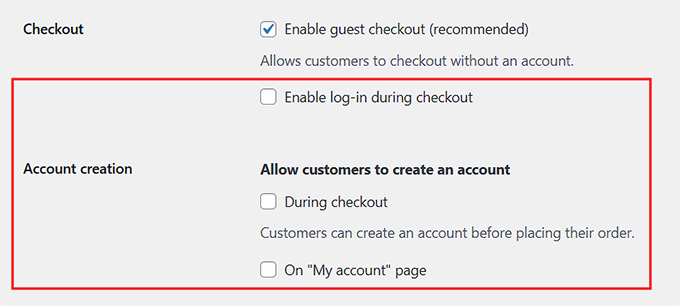
If you run a WooCommerce store, then go to WooCommerce » Settings » Accounts & Privacy. This is where you decide whether shoppers can create an account at all, limit account creation to checkout, or keep guest checkout on so no account creation is needed.
WooCommerce core doesn’t add a separate email-confirmation step on its own. If you want one, then you’ll need a custom email verification extension or the custom signup form covered below.
Other membership and course platforms handle account verification in their own settings, so start there:
BuddyPress and BuddyBoss: email activation is built in, so new members stay inactive until they click the activation link. Enable registration under Settings » General (BuddyPress) or BuddyBoss » Settings » Login & Registration. See BuddyPress documentation and BuddyBoss documentation for more details.
LearnDash: registration runs on WordPress’s own user system, so there’s no native email-confirmation step. An account goes live the moment someone signs up. To hold new accounts until the email is verified, add that check at the WordPress or form level, using a user verification plugin or the custom WPForms registration form covered below.
If you’re building a custom registration form rather than using one of the systems above, then you can use WPForms User Registration addon which lets you turn on email activation under the form’s User Registration settings, with either an email confirmation link or manual admin approval.
Similar options are available in Gravity Forms, WSForm, and other popular WordPress form plugins. For the full walkthrough, see our guide on how to moderate new user registrations.
Add CAPTCHA and Honeypot to WordPress Signup Form
The same tips that protect your WordPress contact forms also work on WordPress signup form. Since you already set up Cloudflare Turnstile earlier, you can switch it on for your registration form in a click.
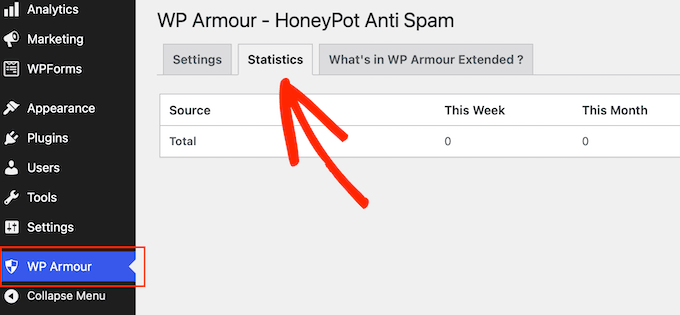
If you’re using the default WordPress registration page, then you can add hidden honeypot fields to your registration form with the free WP Armour plugin. The plugin logs every bot it blocks under WP Armour » Statistics.
Use AI-Powered Tools for Blocking WordPress Registration Spam
Honeypots and CAPTCHAs stop obvious bots, but they can’t spot someone signing up with a throwaway email or from a known-bad IP address.
That’s where automated detection helps. It screens each new signup against live reputation data and blocks the ones that look fraudulent.
ActiveLayer and CleanTalk both offer this for WordPress registrations, and you can switch it on for your signup form the same way you did for your contact forms.
6. Add a Site-Wide WordPress Firewall
A Web Application Firewall (WAF) screens every visitor and blocks malicious requests before they reach your site. Since most form spam is automated, a good firewall can stop a lot of it at the perimeter.
We recommend a DNS-level firewall, which filters traffic on the provider’s network before it touches your server.
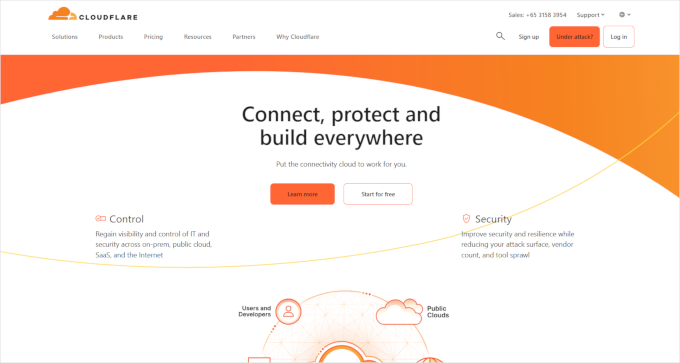
On WPBeginner, we use Cloudflare, which has a free plan with basic firewall protection (setup requires pointing your domain’s nameservers to Cloudflare).
Stopping new spam is only half the job. If you’re like most websites, you already have a backlog of old junk that needs cleaning up.
A quick cleanup keeps your database tidy and helps your new tools run at their best.
🚨 Always create a complete WordPress backup before deleting anything in bulk. These actions permanently wipe data, with no undo button if you make a mistake.
Bulk-Delete Existing Spam Comments
WordPress spam filter flags junk comments but doesn’t delete them, so they can build up in your spam folder and take up database space until you clear them out.
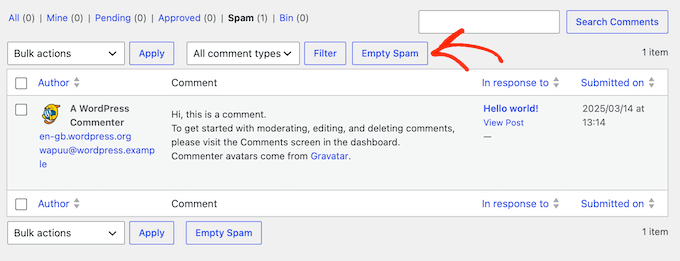
In your dashboard, go to Comments, click the ‘Spam’ filter at the top, and hit ‘Empty Spam’ to permanently clear everything your filters caught.
If you have thousands of junk comments, the dashboard can freeze or time out. A free plugin like WP Bulk Delete is faster and more reliable for big backlogs.
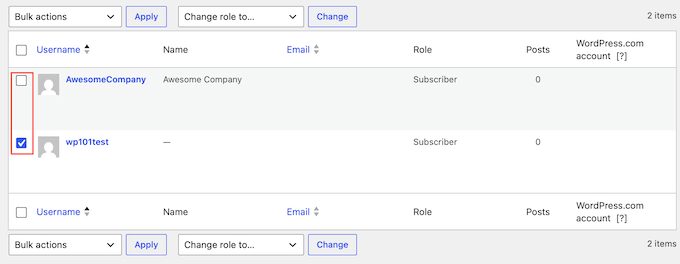
Leaving bot profiles in your database is a security risk and skews your analytics. That’s why it’s important to clean out these fake accounts.
For a handful, go to Users » All Users, click the ‘Subscriber’ user role filter (the role almost all registration bots use), select the fake accounts, and choose Delete from the ‘Bulk actions’ menu.
⚠️ Be very careful to select only fake Subscriber accounts, and never an Administrator account.
For thousands of accounts, the free WP Bulk Delete plugin can remove users by role, inactivity, or registration date in one sweep.
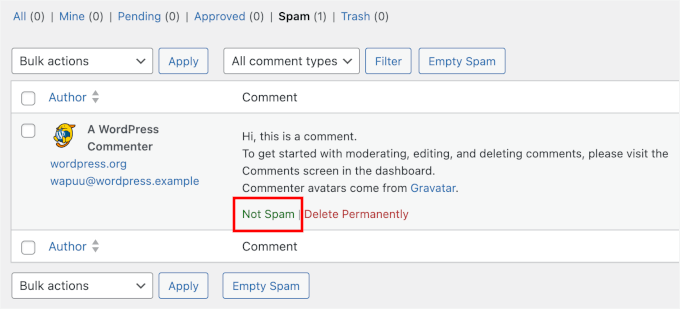
No filter is perfect, so never auto-delete your spam folder without a quick glance first.
In Comments » Spam, hover over a legitimate comment and click ‘Not Spam’. That also teaches your filter to recognize similar comments as safe in the future.
Set a Monthly Anti-Spam Review Routine
A few minutes each month keeps spam from piling back up. Add these three checks to your maintenance routine:
Scan for false positives: skim your spam comment folder and form entries so no real messages were caught by accident.
Empty your spam folders: once you’ve rescued anything real, clear them to keep your database lean.
Check your user list: glance at new registrations for gibberish usernames or suspicious email domains that slipped through.
Key Takeaways
Here is a summary of the best practices we have covered to completely protect your WordPress website from spam:
Start with free WordPress settings: turn on comment moderation, tighten your link limits, build a comment blocklist, and disable trackbacks. These cost nothing and clear out the easiest spam.
Use automated, invisible filtering: a server-side tool like ActiveLayer, Akismet, or CleanTalk blocks bots in the background without making real visitors solve puzzles.
Layer your contact form defenses: honeypots alone no longer stop modern bots, so combine them with timing checks, token validation, and an automated filter.
Secure your registrations: require email confirmation for new accounts and screen every signup with an automated tool.
Add a site-wide firewall: a DNS-level firewall like Cloudflare blocks a lot of automated spam at the perimeter, before it ever reaches your forms.
Run regular cleanup: bulk-delete old spam comments and fake accounts, then spend a few minutes each month checking for false positives.
Frequently Asked Questions About WordPress Spam Protection
Is free Akismet-style filtering enough, or do I need
more?
For a small personal blog with only comment spam, a single free filter like Akismet is usually enough. Once you add contact forms, signup forms, or user registration, you’ll want a service that protects those too, like ActiveLayer or CleanTalk.
Will adding a CAPTCHA hurt my form conversions?
It can. The extra step causes some real visitors to give up on the form. This is why we prefer invisible, server-side detection that blocks bots without asking anyone to solve a puzzle.
Why am I still getting spam after installing an anti-spam
plugin?
Usually because the plugin only guards one entry point. If it protects your
comments but not your signup or contact forms, bots just move to those
instead, and older tricks like basic honeypots no longer stop modern bots. The
fix is a layered setup: your built-in WordPress settings, an automated
filter, and a firewall working together.
How do I stop fake user registrations without turning off signups
completely?
Turn on email confirmation so new accounts stay inactive until the person
clicks a link in their inbox, which bots can’t do. Pair it with a honeypot and
an automated filter, and real people can still sign up freely.
Can spam actually hurt my SEO or get my site
blacklisted?
It can, but it depends on where the spam is. Comment spam sitting in your moderation queue is never published, so search engines never see it and your SEO stays safe.
Published spam is the real risk, because it can slowly pull down your rankings. WordPress does tag comment links as nofollow, which limits the damage.
We hope this article helped you learn how to protect your WordPress website against spam. You may also want to check out our ultimate WordPress security guide to improve your website security.
If you liked this article, then please subscribe to our YouTube Channel for WordPress video tutorials. You can also find us on Twitter and Facebook.
Potremmo richiedere che i cookie siano attivi sul tuo dispositivo. Utilizziamo i cookie per farci sapere quando visitate i nostri siti web, come interagite con noi, per arricchire la vostra esperienza utente e per personalizzare il vostro rapporto con il nostro sito web.
Clicca sulle diverse rubriche delle categorie per saperne di più. Puoi anche modificare alcune delle tue preferenze. Tieni presente che il blocco di alcuni tipi di cookie potrebbe influire sulla tua esperienza sui nostri siti Web e sui servizi che siamo in grado di offrire.
Cookie essenziali del sito Web
Questi cookie sono strettamente necessari per fornirvi i servizi disponibili attraverso il nostro sito web e per utilizzare alcune delle sue caratteristiche.
Poiché questi cookie sono strettamente necessari per fornire il sito web, rifiutarli avrà un impatto come il nostro sito funziona. È sempre possibile bloccare o eliminare i cookie cambiando le impostazioni del browser e bloccando forzatamente tutti i cookie di questo sito. Ma questo ti chiederà sempre di accettare/rifiutare i cookie quando rivisiti il nostro sito.
Rispettiamo pienamente se si desidera rifiutare i cookie, ma per evitare di chiedervi gentilmente più e più volte di permettere di memorizzare i cookie per questo. L’utente è libero di rinunciare in qualsiasi momento o optare per altri cookie per ottenere un’esperienza migliore. Se rifiuti i cookie, rimuoveremo tutti i cookie impostati nel nostro dominio.
Vi forniamo un elenco dei cookie memorizzati sul vostro computer nel nostro dominio in modo che possiate controllare cosa abbiamo memorizzato. Per motivi di sicurezza non siamo in grado di mostrare o modificare i cookie di altri domini. Puoi controllarli nelle impostazioni di sicurezza del tuo browser.
Altri servizi esterni
Utilizziamo anche diversi servizi esterni come Google Webfonts, Google Maps e fornitori esterni di video. Poiché questi fornitori possono raccogliere dati personali come il tuo indirizzo IP, ti permettiamo di bloccarli qui. Si prega di notare che questo potrebbe ridurre notevolmente la funzionalità e l’aspetto del nostro sito. Le modifiche avranno effetto una volta ricaricata la pagina.
Google Fonts:
Impostazioni Google di Enfold:
Cerca impostazioni:
Vimeo and Youtube video embeds:
Privacy Policy
Puoi leggere i nostri cookie e le nostre impostazioni sulla privacy in dettaglio nella nostra pagina sulla privacy.


 The latest episode is